my blog writing workflow with obsidian
ever wondered how some people manage to write technical blogs without losing their minds juggling between a million tools? well, buckle up because i'm about to show you my setup that's so smooth it's almost criminal.

why obsidian is my second brain
let me start by gushing about obsidian. i use obsidian as my brain dump.
seriously, if i think of something even remotely useful, whether it’s a random idea at 2 AM or a technical concept i want to explore, i create a note. even if it sounds stupid in the moment, i write it down.
this might sound chaotic, but here’s the thing: it allows me to let my thoughts flow freely and store them in an easily accessible, indexable way that i can reference later.
it’s like having a second brain that never forgets and always knows where you left that half-baked idea about database optimization from three months ago.
obsidian handles markdown like a dream, and here’s the kicker: it’s built on open standards. no vendor lock-in, no proprietary formats.
just plain markdown files sitting on your computer, ready to be version controlled and backed up however you want. being open source (well, the ecosystem at least) means there’s a plugin for basically everything.
want to sync with git? there’s a plugin. want to create templates? plugin. want to automatically generate file structures? you guessed it, there’s a plugin for that too.
the power couple: obsidian + astro
my blog (the one you’re reading right now on milind.dev) is built with astro, which is stupidly fast and handles markdown beautifully.
it started out as a fully static site, and these days it runs as a small node server instead — some pages pull live data and i wanted that without bolting on a second service.
the marriage between obsidian and astro is chef’s kiss because i can write in my comfortable note-taking environment while astro transforms those markdown files into blazing-fast HTML.
everything stays in sync automatically, which means i never have to manually copy-paste content or worry about formatting breaking.
drawing makes everything better
here’s something i learned early on: a good diagram can explain in 30 seconds what would take me 300 words to write.
that’s where excalidraw comes in.
excalidraw is this beautiful, minimalist drawing tool that creates sketchy, hand-drawn style diagrams. and yes, before you ask, it’s open source too (i might have a type).
the best part? there’s an obsidian plugin for excalidraw that integrates so seamlessly you’d think they were made for each other.
i’ve configured it to automatically export my drawings as PNGs for both light and dark themes.
here’s the really cool part: if you’re reading this on my site, try switching between light and dark mode (there’s a toggle somewhere on the page). watch the diagrams below change colors to match your theme.
pretty neat, right?
the workflow (how the magic happens)
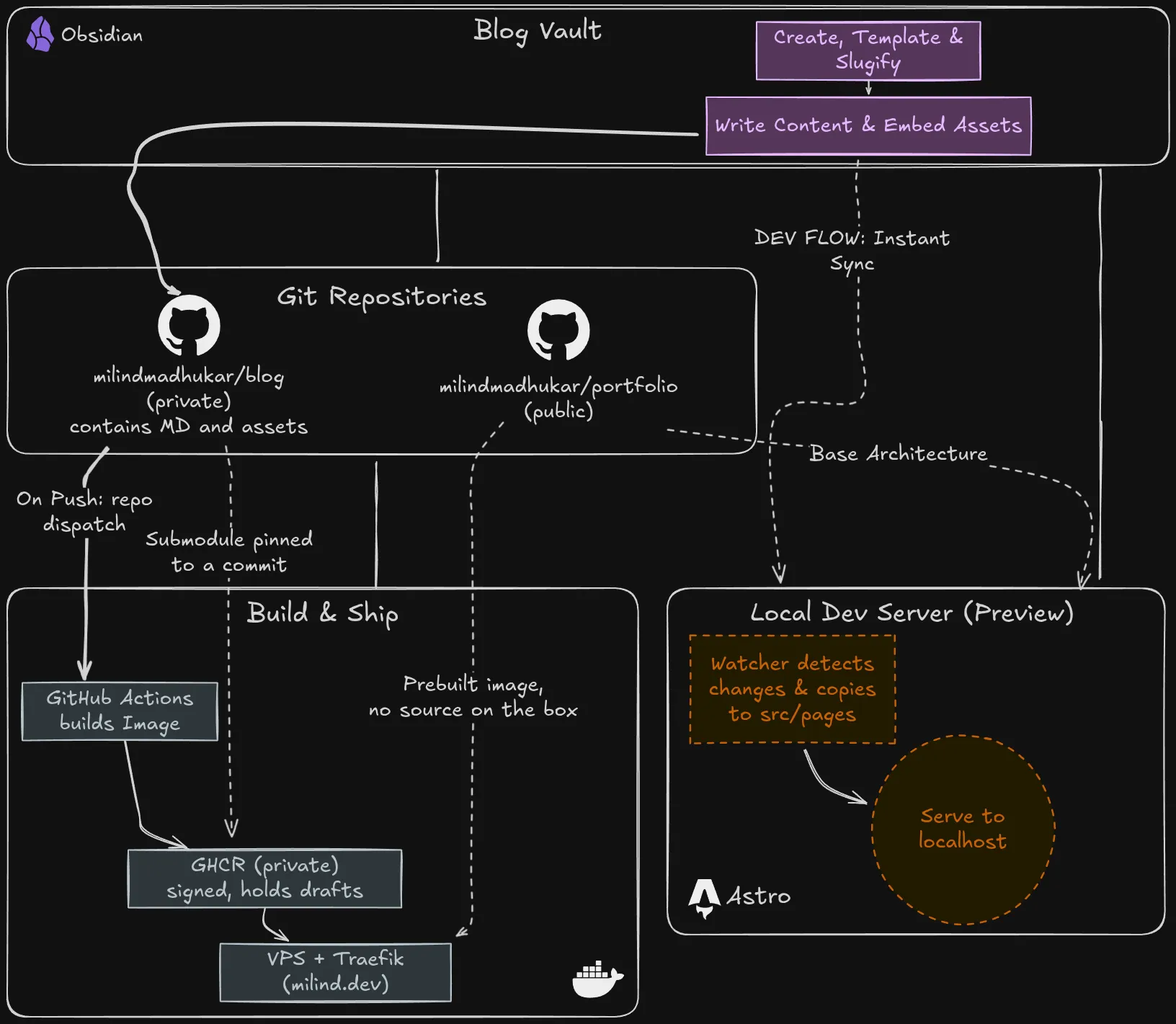
setting up the blog vault
i created a dedicated obsidian vault just for my blog content.
inside this vault, i’ve got a _templates folder with my blog post template, a _scripts folder with automation scripts, and individual folders for each blog post.
everything is version controlled with git using the obsidian git plugin. i’ve bound ctrl+shift+s to commit and sync.
muscle memory is a beautiful thing.
creating a new post
when inspiration strikes, i hit ctrl+n which triggers the quickadd plugin. a popup appears asking for the blog post title.
once i enter it, quickadd works its magic:
- it grabs my template (which has frontmatter fields like title, description, date, tags, and the astro layout reference)
- fills in the title and current timestamp
- creates a new folder with that name
- runs my custom slugify script to make the folder URL-friendly
- and then runs another script to generate the file structure with an
_assetsfolder and anexcalidrawsubfolder inside it
all of this happens in under a second. no clicking through menus, no manual folder creation.
just ctrl+n, type title, boom. ready to write.
the slugify script (you can check it out at ~/Documents/Blog/_scripts/slugify.js) takes a title like “My Awesome Blog Post” and transforms it into my-awesome-blog-post by normalizing unicode characters, converting to lowercase, replacing spaces with hyphens, and removing special characters.
clean, URL-friendly, SEO-happy.
writing content and embedding assets
now comes the fun part. i write my blog post in obsidian using good old markdown.
when i need to add a diagram, i create a new excalidraw drawing in the excalidraw folder. the plugin automatically exports .light.png and .dark.png versions.
in my markdown, i just reference it like ![[workflow.excalidraw]] and both obsidian and astro know what to do. obsidian shows it inline while i’m writing, and astro will render it as a theme-aware image on the final site.
the development experience
now here’s where things get really slick. when i’m actively writing a blog post, i run bun run dev:watch on my local astro site.
this starts two things: the astro dev server and a file watcher that monitors my blog vault for changes.
every time i save a file in obsidian, the watcher (with 500ms debouncing to avoid triggering on rapid-fire saves) detects the change, runs the sync script, and copies the updated blog content to src/pages/blog in the astro project.
astro’s dev server sees the change and hot-reloads the browser. i literally see my changes appear almost instantly.
write, save, see result. the feedback loop is chef’s kiss.
the sync script (website/scripts/sync-blog.ts) is smart about what it copies. it skips hidden files, system files, templates, and scripts.
it only grabs markdown files and blog post folders. it also cleans up old posts before syncing to ensure there’s no stale content hanging around.
the translation layer: obsidian to astro
obsidian uses its own wikilink syntax (like [[this]]), while astro expects standard markdown.
that’s where my custom remark plugins bridge the gap.
the link translation plugin converts obsidian wikilinks to proper markdown links.
[[other-post]] becomes a link to /blog/other-post/, [[post|Custom Text]] becomes [Custom Text](/blog/post/), and ![[image.png]] becomes an optimized image with lazy loading attributes.
the excalidraw plugin does something cooler. it transforms ![[drawing.excalidraw]] into a container div with both light and dark image variants.
CSS handles showing the correct one based on the user’s theme preference. this is how you get those smooth theme-switching diagrams i mentioned earlier.
the deployment pipeline
okay, so i’ve written my masterpiece in obsidian. how does it get to the internet?
let me walk you through the journey from my local machine to milind.dev.
two repositories, one workflow
i have two separate github repositories in this setup.
the first is my private blog content repo (milindmadhukar/blog) which contains just markdown files and assets. the second is my public portfolio repo (milindmadhukar/portfolio) which contains the astro site code.
this separation is intentional: i can keep my blog drafts and ideas private while keeping the website code open source. the portfolio repo pulls the blog one in as a submodule, so they stay two repos with one seam between them.
from obsidian to github
when i’m done writing or editing a post, i hit ctrl+shift+s in obsidian. the git plugin commits my changes and pushes them to the private blog repo on github.
simple, quick, muscle memory.
the part where it becomes a box i own
here’s where it gets interesting. the site isn’t on a hosting platform at all anymore — it’s a docker image running on a hetzner box i rent, which i have named limitless because i have no self-restraint when naming servers.
github actions builds that image on every push, signs it, and pushes it to GHCR.
the blog content isn’t fetched at build time. it rides along as a git submodule pinned to an exact commit, so the image that gets built is the image that gets run — same markdown, same everything, forever reproducible.
which means the packages have to be private, because the image literally contains my unpublished drafts.
every published post ships inside a container that is also quietly carrying the half-finished ones. the drafts are in there. they’re just not wired to a URL.
on the box itself there’s a folder called ~/docker/portfolio, and it contains exactly two things: a docker-compose.yml and a .env. no source code, no git checkout, no build tools.
it pulls a prebuilt image and runs it. that’s the entire deployment.
in front of it sits traefik, which notices the new container, routes milind.dev to it, and handles TLS. the certificates come from a resolver using the cloudflare DNS-01 challenge, so issuing them doesn’t depend on DNS pointing at this machine — which made the migration itself deeply boring, in the best way.
so the complete flow is:
- i push to the blog repo
- a github action fires a
repository_dispatchat the portfolio repo - CI bumps the submodule to my new commit and builds the image
- the box pulls it and restarts the container
- traefik picks it up and the new version is live
all automatic. all beautiful. i just write in obsidian and hit ctrl+shift+s.
why this setup rocks
let me count the ways:
friction-free writing: i just open obsidian and write. no context switching, no fighting with a CMS, no waiting for a web interface to load. just pure writing.
version control for everything: everything lives in git. i can roll back bad edits, see what i wrote three months ago, track changes over time, and never worry about losing work.
privacy meets public: my blog content stays private until i’m ready to publish, but the site code is open source. best of both worlds. i can experiment with drafts and half-baked ideas without them being public.
fast feedback during development: changes appear in the browser almost instantly while developing. the tight feedback loop keeps me in the flow state.
theme-aware assets: diagrams automatically match the user’s theme preference. try it right now if you haven’t already. toggle your theme and watch the diagrams above change colors. it’s the little things.
zero vendor lock-in: it’s all markdown files sitting on my computer. i know this one holds up, because this whole site used to live on a hosting platform and now it doesn’t. moving it cost me a compose file and an afternoon — the posts didn’t notice.
automation everywhere: from creating posts to deploying to production, it’s all automated. the only manual steps are writing and hitting ctrl+shift+s.
the stack summary
for those who skim to the end:
| writing | obsidian with plugins for git, quickadd, and excalidraw |
| framework | astro with custom remark plugins for translating obsidian syntax |
| hosting | a hetzner box running docker, with traefik out front |
| version control | github with separate repos for content (private) and site code (public), joined by a submodule |
| package manager | bun because it’s ridiculously fast |
| drawing | excalidraw for hand-drawn style diagrams |
want to build something similar?
the entire astro site code is available on my portfolio repo. key files worth checking out:
website/astro.config.mjsfor the astro configuration with custom pluginswebsite/scripts/sync-blog.tsfor the sync magic that bridges local and productionwebsite/scripts/watch-blog.tsfor the development file watcherwebsite/src/plugins/remark-obsidian-links.jsfor link translation from obsidian to markdownwebsite/src/plugins/remark-obsidian-excalidraw.jsfor theme-aware diagram handling
the beauty of this setup is it’s modular. you can steal bits and pieces that work for you without adopting the whole thing.
maybe you just want the obsidian to astro sync script, or maybe you only care about the theme-aware excalidraw plugin. take what you need.
final thoughts
building this workflow took some upfront time, but it’s paid dividends.
i can now go from random 2 AM idea to published post in one smooth flow without ever leaving my writing environment. the friction is basically zero.
the best tools are the ones that get out of your way and let you focus on the work. this setup does exactly that.
obsidian lets me think and write freely, the automation handles the busywork, and astro makes it all fast and beautiful on the web.
now if you’ll excuse me, i have more blogs to write. and with this workflow, i might actually write them.
happy blogging!